Company details
Keep your service address and contact phone current so homeowners recognize your company.

SwimSense · service provider guide
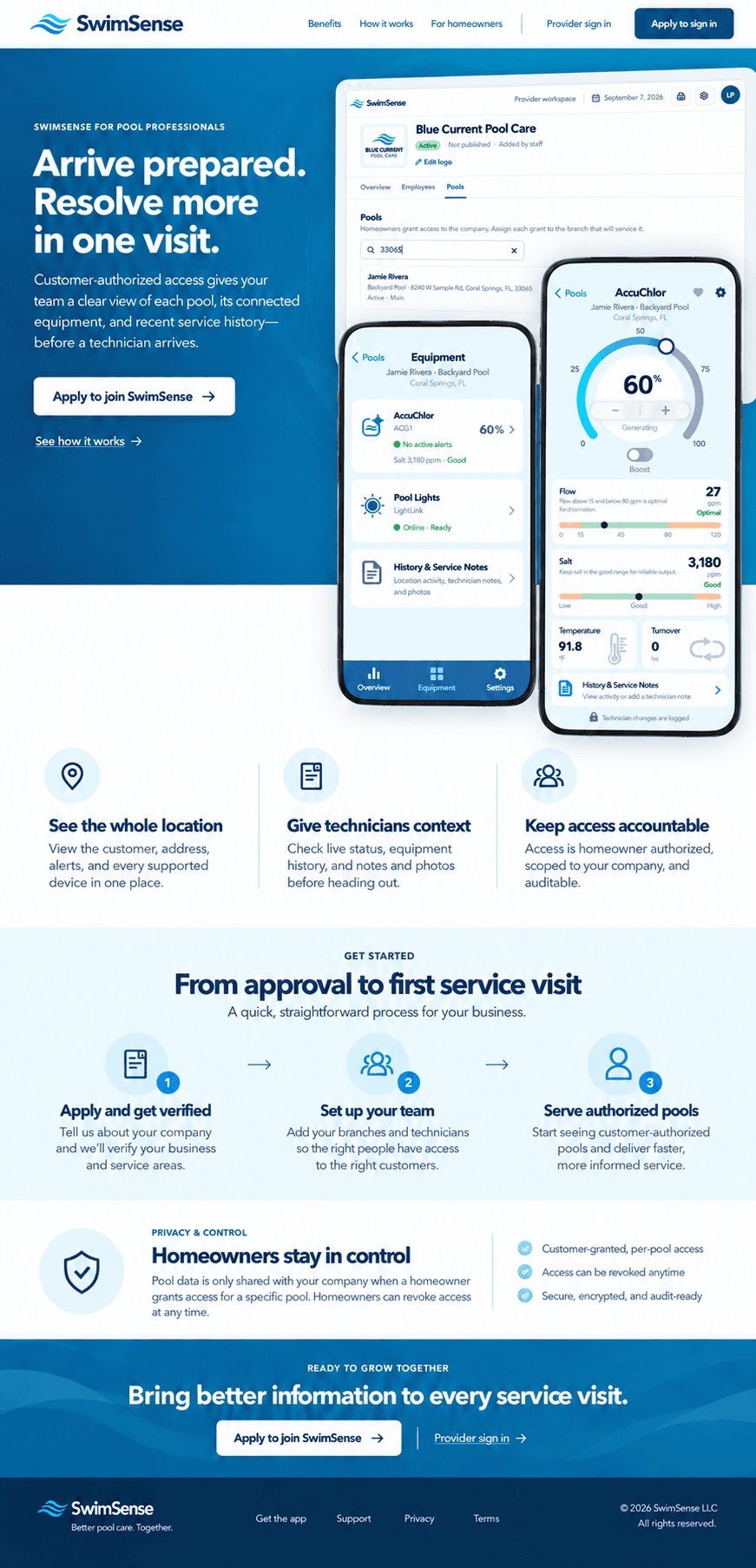
Set up your company and team, then use homeowner-authorized pool information to arrive with useful context.
Your onboarding, step by step
Start with a verified account and company application. Once approved, build your team and wait for homeowners to share access to their pools.
Your SwimSense identity
Your provider application starts from a personal SwimSense account. Use an email address you can access, and confirm it when SwimSense emails you a verification code.
Use the right contact. The signed-in account name and verified email are used as the application contact and the first company manager after approval.
Company review
Submit your company name, primary service address, and phone number. If your company serves from more than one location, choose multiple branches; you can add each branch after your account is approved.
A person reviews each application. Submitting does not publish or activate your company. SwimSense checks applications manually and approval is required before provider workspace access.
Provider workspace availability depends on the current SwimSense Dashboard release. Contact support if you need help confirming access after approval.
Your workspace
After approval, sign in to the SwimSense Dashboard. In your provider company workspace, use Overview → Edit details to check the primary address and phone shown to customers. Use Edit logo to add your company logo.
Keep your service address and contact phone current so homeowners recognize your company.
Add a branch with its own name, address, and phone. Assign customer pools to the location responsible for service.
A single-location company can use its Main location. Add branches when you need separate service areas or customer assignments.
The right people
Open Employees, enter an employee’s email, choose their customer access, then select Send invitation. Employees need their own SwimSense account to accept.
For team members who support pools across the company.
For team members who should work only with pools assigned to that location.
The workspace reports invitation email delivery and gives you a secure link to copy and share. If email delivery fails, share that link directly with the employee.
Permission comes first
Each homeowner controls sharing from the SwimSense mobile app. Ask them to open Service Provider access for their pool, find your company, and grant access. For a multi-branch company, a manager can assign that pool to its servicing branch.
Only granted pools are available to your company. A new company with no grants will show an empty pools list until homeowners choose to share.
Before you arrive
Managers can open a granted pool from Pools → View details in the Dashboard. On a phone, an authorized technician can open Your customer pools, choose the pool, and inspect available equipment details, status, alerts, readings, and history.
Check the customer’s pool and supported equipment. Data depends on connected devices and their latest readings.
In the mobile app, add a service note and photos. Choose Company internal or Shared with homeowner before saving.
Choose visibility carefully. Company internal notes are limited to currently authorized company members. The homeowner can see shared notes and every attached photo; a shared note cannot be changed back to internal in this version.
The current provider workflow supports reviewing information and adding service notes. It does not promise that an alert will trigger a message or notification.
Access that stays current
Managers can adjust an employee’s company or branch scope, suspend or remove a team member, and change which branch handles a pool. Homeowners can revoke a pool grant whenever they want.
A few helpful answers
Every company application is reviewed by the SwimSense team. You will be able to use provider features after approval. There is no instant or automatic approval, and we do not publish an approval time estimate here.
A pool appears after its homeowner grants your company access in the SwimSense mobile app. Ask customers to open their pool sharing controls, choose Service Provider access, and select your company. A technician’s company or branch scope must also include that pool.
The invitation panel shows whether an email was sent and provides a secure invitation link to copy and share. Ask the employee to check spam or junk mail, then share that link directly if needed. They can create an account or sign in before accepting.
Company access lets an employee work with all pools granted to the company. Branch access limits them to pools assigned to that branch. Managers can choose or change an employee’s scope in the company workspace.
Authorized members can review the shared pool and supported equipment details, current status and alerts, available readings, equipment history, and service notes. Visibility depends on the equipment and data the homeowner’s pool has available. A company grant does not mean every device or reading is present.
When a technician saves a note, they choose Company internal or Shared with homeowner. Internal notes are visible to currently authorized company members. Shared notes and their attached photos are visible to the homeowner; sharing a note cannot be undone in the current mobile workflow.
A missing reading can mean that the equipment does not provide it, a device is offline, or no new data has arrived. Review the device’s available history and status, then check the equipment on site when needed. Do not treat a blank reading as a diagnosis.
Yes. A homeowner can revoke the company’s grant from the SwimSense app. Company managers can suspend or remove an employee; removing them ends their company access while their SwimSense account remains active.
We’re here to help
Reach the SwimSense team for help with your application or provider setup.